User management
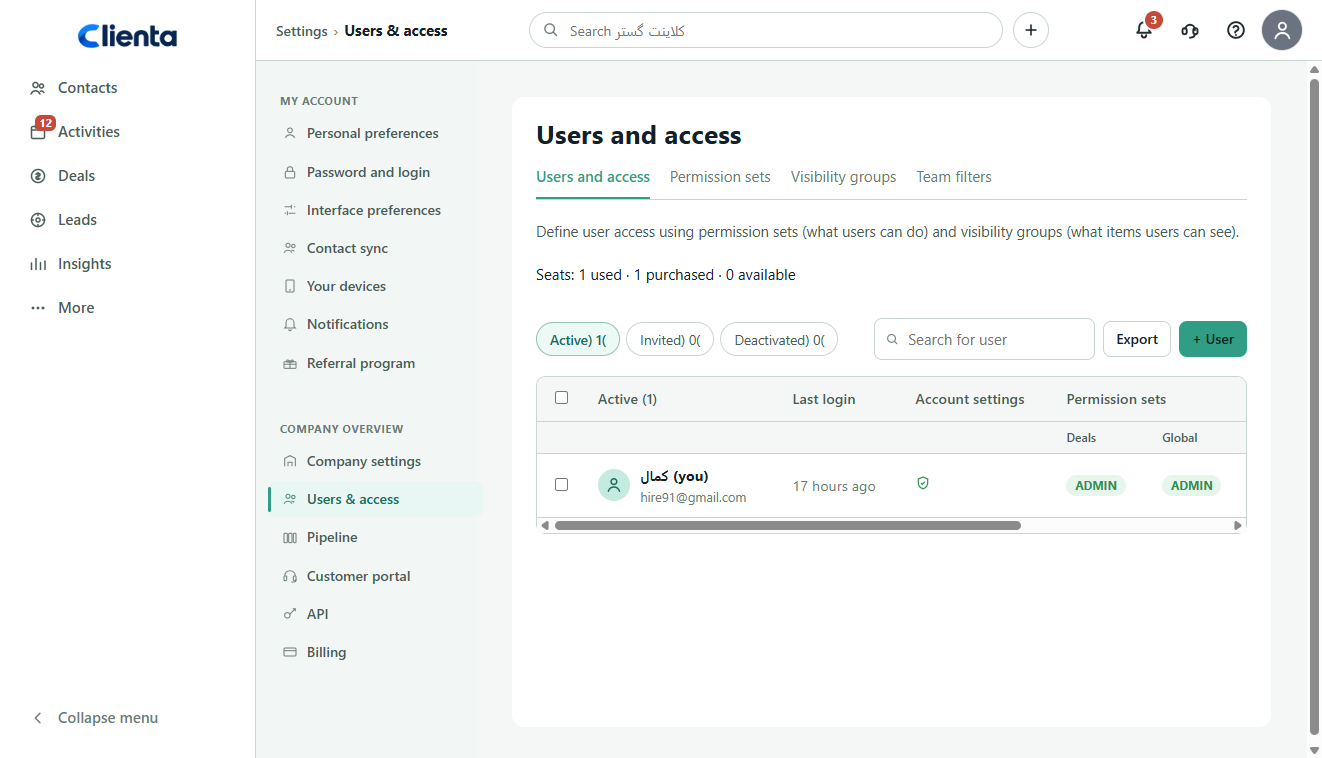
Invite by email, watch seat usage, and manage active, invited or deactivated users separately.

Clienta users and access
Complete control of what the team can see and do.
When everyone shares one login, or everyone sees every customer, data safety and ownership both break down. A seller should move their own work forward; a manager should see the full picture — without opening another branch’s records.
In Clienta you invite members, assign permission sets and build visibility groups. You decide who can create deals, who can read other people’s reports, and which pipelines each team can open.
What are CRM user permissions?
A label of “admin” or “member” is not enough. You need to say whether a seller edits only their deals or other people’s too, whether they can export, and whether another branch’s pipeline is even visible. Permission sets define allowed actions; visibility groups define the data range.
Clienta user permission features
Invite by email, watch seat usage, and manage active, invited or deactivated users separately.
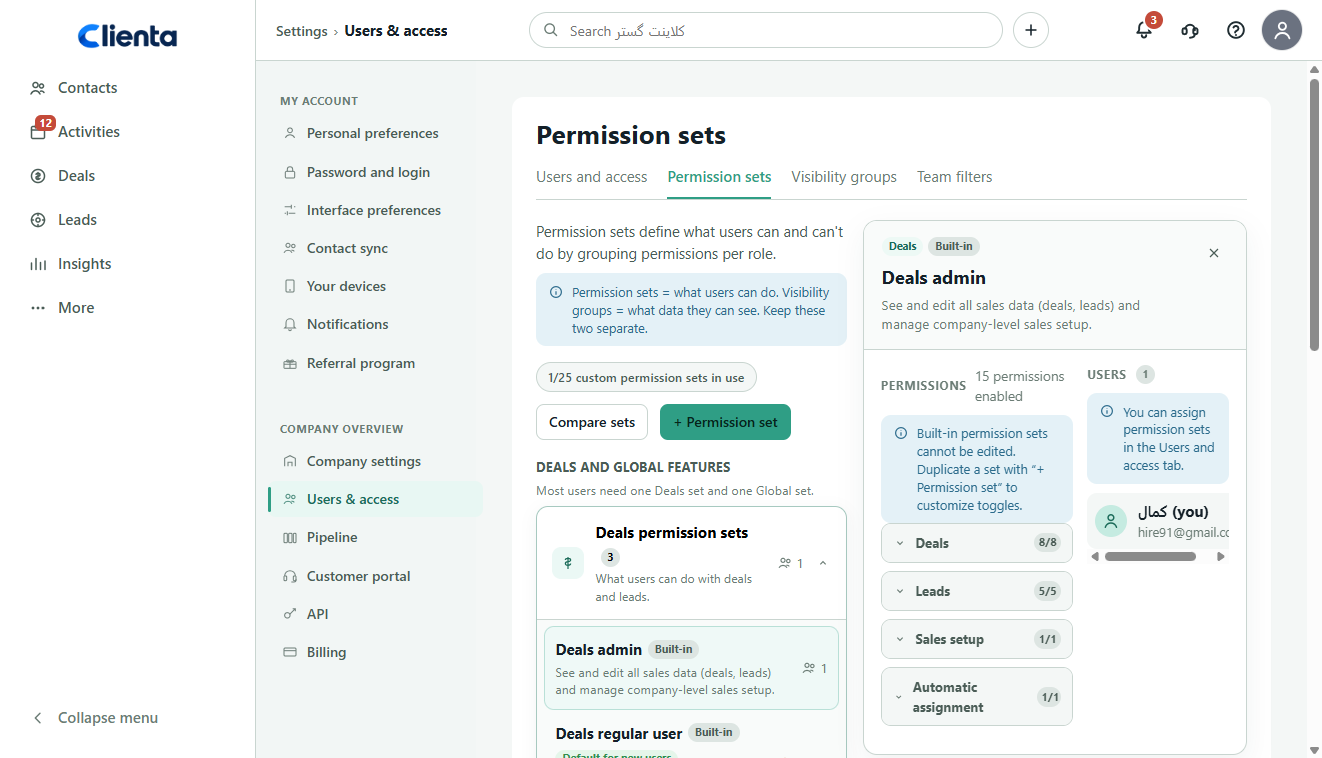
Use built-in roles such as deals admin and regular user, or copy a custom set for a senior seller.
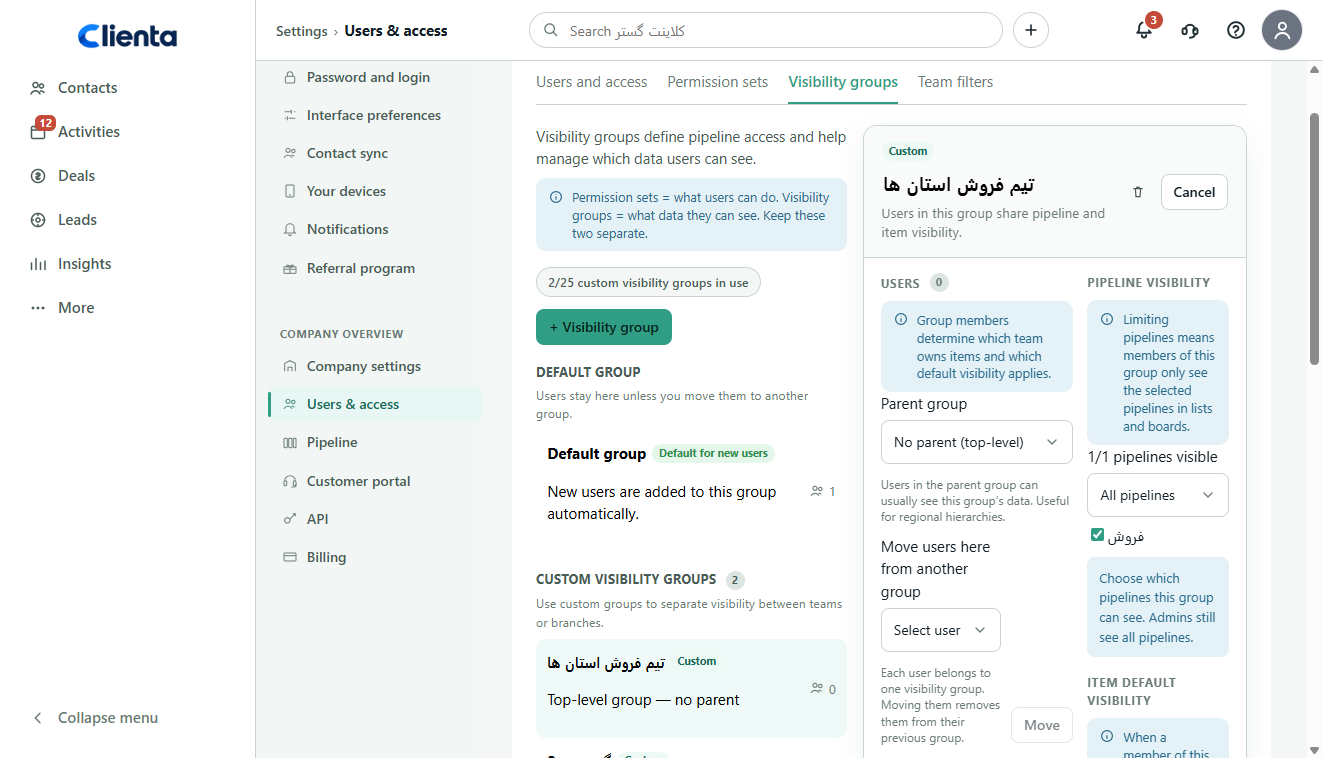
Separate teams or branches; limit visible pipelines and set default visibility for new deals and contacts.
Add a parent group so a regional manager sees subgroup data without opening the whole workspace.
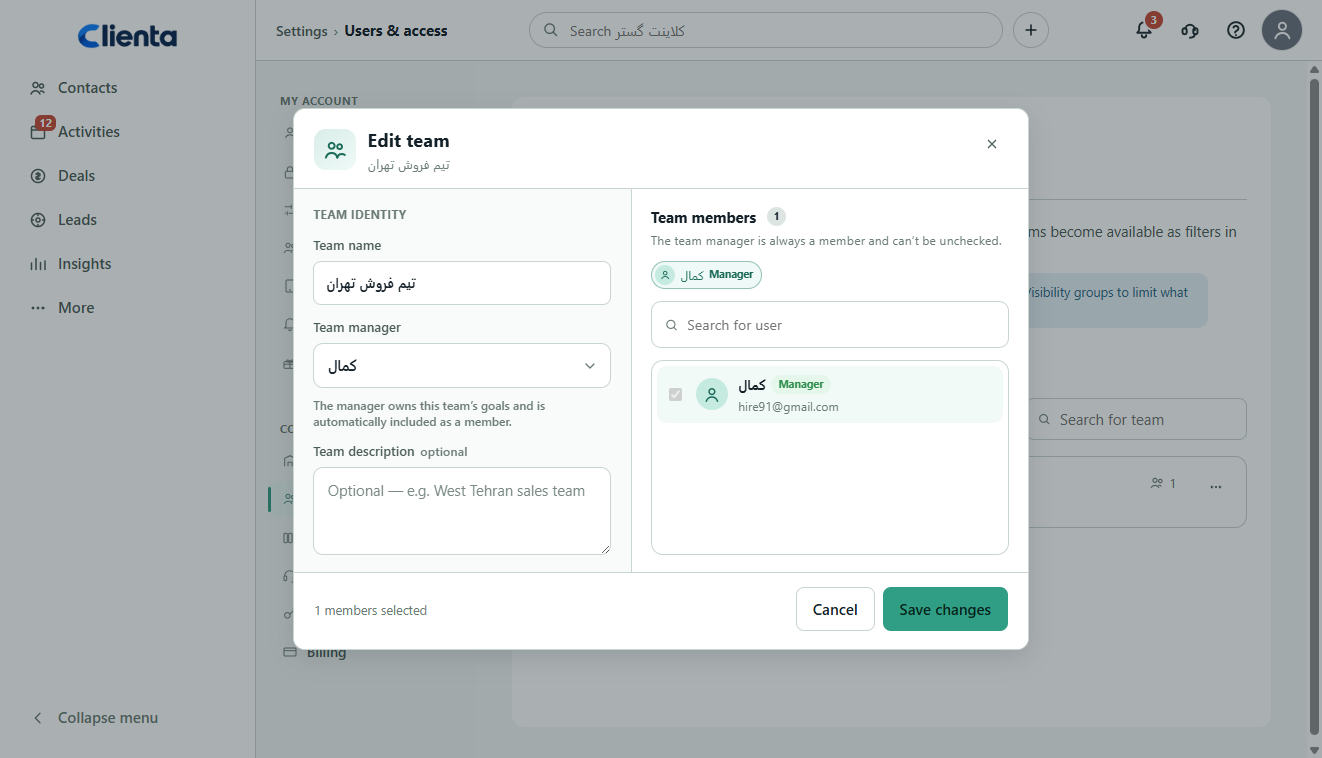
Create a Tehran sales team for reports and goals; the filter does not restrict what people can see.
Put two permission sets side by side so the difference between seller and manager is clear before you assign them.
What to look for in CRM access control
If a role is only a label, everyone still sees everything. If everything is locked, a seller waits on a manager for a simple edit. The right tool keeps seeing and doing separate.
Being able to create a deal is not the same as seeing other people’s deals. Do not mix those in one switch.
Built-in roles are a starting point; a real team needs a custom copy of the same set.
A branch should not see another branch’s pipeline on the board, even when they share a workspace.
A shared account breaks history and you cannot tell who changed a deal.
Team filters help with goals and insights; data limits should come from visibility groups.
Software feature
Built-in sets such as deals admin and regular user are the starting point and cannot be edited. For a senior seller you duplicate the set and change toggles for adding deals, editing others, deleting, converting or exporting.
Software feature
The user list shows who is active, when they last signed in, and which deals and global permission sets they have. You see seat usage, export the list and edit access without jumping between screens.
From invite to daily work
You invite the member, assign a role and choose a visibility group. From then on, the seller sees the data their work actually needs.
You send an email, a seat is used, and invited status stays separate until the first sign-in. No shared login.
Deals, global features and, if needed, projects are set separately: add, edit others, delete, export and reports.
Move the user to the default group or a branch group, then set visible pipelines and default item visibility.
If you want team goals or insight filters, create a team filter — without changing the data range.
Software feature
A one-size setting either hides too much or exposes sensitive records. With visibility groups you separate a branch or region, limit visible pipelines and set the default visibility of a new deal to the owner’s group.
Software feature
A sales manager wants Tehran’s performance separately, without changing who can open a customer. Team filters apply in pipeline, list and Insights. Record visibility still comes from visibility groups — keep the two apart.
One workspace, three access views
Do I see the full pipeline, who can edit other people’s deals, and does each branch stay in its own data?
I can see my customers and deals and keep working; unrelated records stay closed.
Has the shared login stopped, is customer data limited, and does every change belong to one person?
Frequently asked questions
Go to Settings > Users & access > Permission sets. You will see built-in roles such as deals admin and regular user. To customize, click + Permission set to copy a set and change the toggles. Premium includes up to 15 custom sets and Ultimate up to 25; Lite and Growth keep the defaults only.
On the Users and access tab, select people and edit access. Most users need one deals set and one global set. Assignment happens in the user list; the Permission sets tab only shows who is already on each set.
Permission sets say what a user can do: create deals, edit other people’s work, delete, export or view reports. Visibility groups say which data they see: their group’s deals, a branch pipeline, or only items they own. Keep the two separate so sellers can work without opening unrelated records.
No. Teams are for reporting, pipeline filters and shared goals. If a branch should not see another branch’s customers, use a visibility group — not a team filter.
Create a visibility group, move the user into it and choose which pipelines are visible. Set default visibility for new items to the owner’s group, owner only, subgroups or all users. Existing items are not changed by that default.
No. Invite each person by email so sign-in, history and ownership stay separate. Seat usage is on the same users page, and you deactivate someone when they leave the team.
Start free for 14 days, invite a teammate, set a role and visibility group, and confirm each person only sees the data they need.